A service PDF download is useful when it supports the page, and frustrating when it replaces it. To make one clear and accessible, summarise the important points in normal page text, link to the file with descriptive wording that names the document and its format, and check the PDF itself for a document title, alternative text for meaningful images and keyboard access. This guide is for small service businesses in Istanbul and teams serving international buyers who offer a brochure, price-scope outline or onboarding pack. It includes a fictional example and a pre-publication checklist. Nothing here guarantees search visibility or more enquiries; the aim is a download that people and assistive technology can understand before they decide to open it.
Decide what the PDF is for
Start by naming the job of the file. A PDF might help a buyer share a scope outline with colleagues, print a checklist or keep a reference offline. If its only job is to hold the service description, the description probably belongs on the page, where it can be read on any device without a separate download. Write the purpose in one sentence and check that the page and the file agree on the facts.
Also decide who maintains it. A PDF is a copy, and copies age. Note the person who confirms its contents, the date it was last checked and the page that links to it. If nobody can own it, consider removing the download rather than leaving an outdated file public.
Put the key points in page text
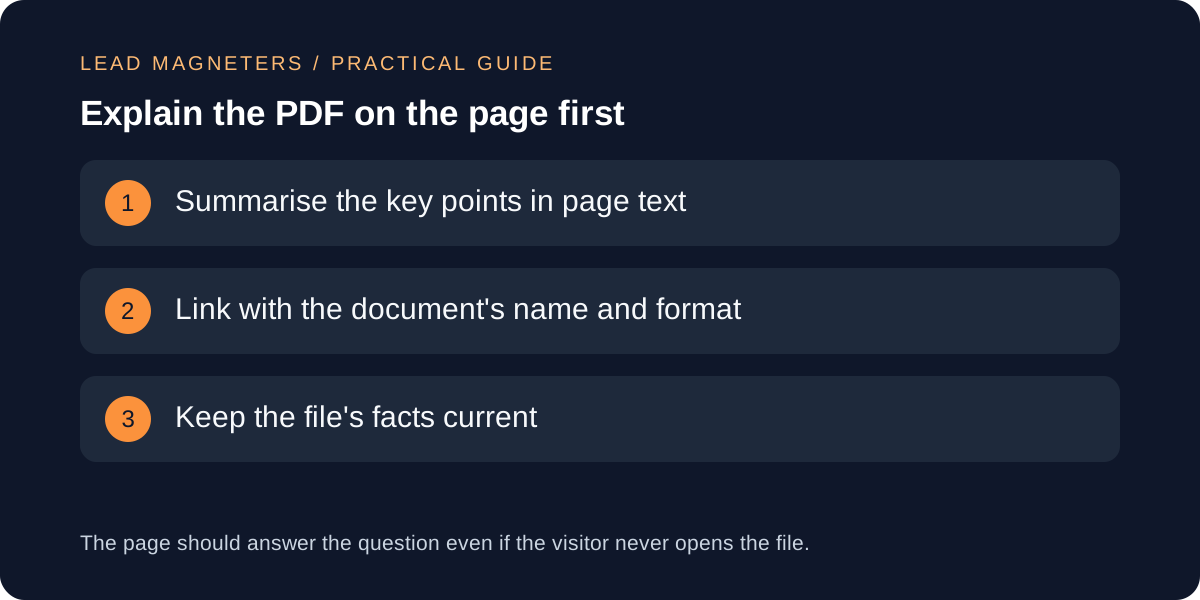
Write a short summary on the service page itself: what the document contains, who it is for and the two or three points a visitor most needs. Page text is easier to read on a phone, works with browser translation and reading tools, and does not ask the visitor to leave the page. Treat the PDF as an optional extra for people who want more detail or a copy to keep.
Google states that it can index PDF files, so a PDF can appear in search on its own. That is a reason to keep its wording accurate, but not a reason to rely on it. A visitor who lands directly on the file may see no navigation, no enquiry route and no context, so give the file a clear first page with the business name and a way to get in touch.
Write link text that names the document
The W3C guidance on link purpose explains that a link's purpose should be clear from its text, or from its text together with its surrounding context. For a document, it says the name of the document can describe the link's purpose, and it treats matching the link text to the document's title as good practice. Wording such as "click here" or "download" alone tells a screen reader user nothing when links are read out as a list.
State the format in the link or immediately beside it, for example the document name followed by "PDF". The same guidance shows the format as a separate label in one of its examples. Because file size is not covered there, treat it as a courtesy: add it only if you can keep it accurate when the file is replaced. Use the same wording every time you link to the same file.
Check your contact journey for accessibility →
Check the PDF's own accessibility basics
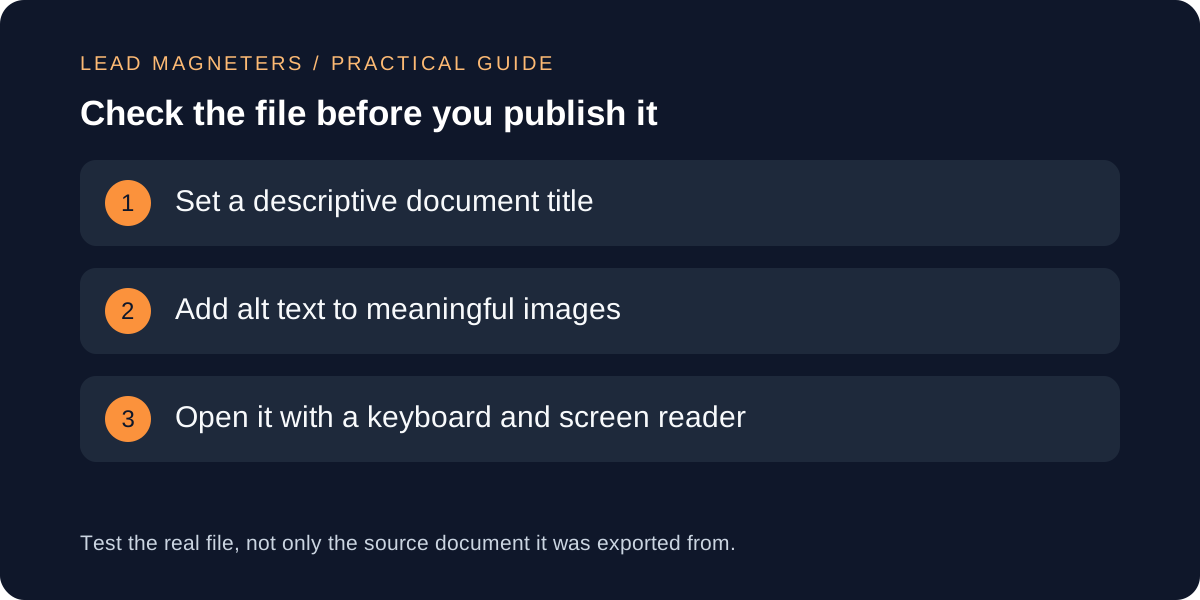
W3C technique PDF18 describes giving a PDF a descriptive title, set in the document's title property, with the viewer preference that shows the title rather than the file name. This lets people identify the document in a browser tab or window title. Technique PDF1 describes alternative text for images in tagged PDFs, conveying the meaning of the image rather than every visual detail and including any words that matter. Decorative images do not need descriptions of their own.
Most authoring tools can export a tagged PDF, but the export is not a guarantee. Open the finished file, tab through its links, read it with a screen reader or a PDF accessibility checker and confirm the reading order follows the visual order. These are examples of checks, and passing them does not by itself prove conformance, so note what you tested and what you could not.
A fictional example: a bookkeeping onboarding pack
Imagine a fictional Istanbul bookkeeping practice with a page for monthly bookkeeping and a 14-page PDF called Onboarding Pack. The page has one line, Download our brochure, linked to a file named final_v3.pdf. The PDF has no title property, its price-scope table is a scanned image and the page says nothing about what the pack contains.
The team rewrites the page with a short summary of the documents a new client provides and the monthly deliverables. The link becomes Bookkeeping onboarding pack (PDF), matching the document's title. They set a document title, replace the scanned table with real text and add alternative text to the one logo that carries meaning. Finally they add the practice's contact details to page one. This example is illustrative, not a client result.
Keep a release checklist and review it
Before publishing or replacing a PDF, confirm that the page summary matches the file, the link text names the document and its format, the title property is set, meaningful images have alternative text, links inside the file work and the contact details are current. Give the file a stable, readable name, and when you publish a new version, update the existing file at the same address if the topic is unchanged so old links keep working.
Review downloads on a schedule that matches how often your services change, perhaps each quarter for a small team. If you track downloads, remember that a count shows interest, not understanding or enquiry quality. Record what you changed and when, so the next reviewer can see why the file looks the way it does.